Showing posts with label itunes. Show all posts

Tuesday, February 26, 2008

I-pods, Cell Phones and PDA's in The Classroom

Some schools have declared war on i-pods, cell phones and portable electronic devices. They are seen in these places as a distraction to learning and "education" in general.

Like the war on terrorism, I don't believe this is a winnable war. For three reasons, at least:

1- Teens like music
2- Teens are social to the core (cell phones allow constant and instant communication with one's BFF's)
3- The technologies are here to stay because they are profitable to the companies that make them.

Calculators used to fall into this category. They were a threat and a nuisance....Until!

Until a use was declared within education circles. Someone convinced others within Academia that calculators could, indeed, be used as an enhancement to the educational process. Now, of course, they are ubiquitous.

The problem as I see it is not that students own and use the aforementioned devices. The problem is that ALL students are not using them. If we knew that ALL students owned them, we could require that they be brought to class and used to enhance the learning process.

Imagine:

"OK, the first one to text me the correct answer, gets to ask the next question!"

"OK, take out your ear-buds and using your PDA, login to the school network, go to the Student Network Folder and find a link called Beethoven 1. Listen to the first 2 minutes of Beethoven's 1st Symphony. When you're done, use PDA to do a Google search about classical vs. romantic music. Using your PDA, write a blog post about why Beethoven's Symphony was ground-breaking. E-mail me the link to the post. If you have any questions, text me or send me an e-mail..I'll respond immediately."

or

"OK, tonight, I want you to rip one of your parent's Cd's into your music collection. Choose one you like and that you can connect to the subject of this class in some way. Load it onto your i-pod. We'll listen to a few tomorrow and discuss the relevance of the song to the subject of this class"

Etc...

It's not a war. It's an opportunity. At least it can be.

cross posting from Another Brick In The Wall

Tuesday, January 01, 2008

How To Make a CD of Your Band Cheaply


A few years ago I started to make CD’s of our school bands available for parents and anyone else who was interested in our performances. Having these recordings has served as an excellent assessment tool for students as we listen and critique our performances. It’s also convenient to have this ‘data’ on hand for school administrators and for curriculum purposes. As for students and parents, they have a wonderful audio snapshot to use now and in future years.

If we’re in agreement that making CD recordings of our bands is a good idea, the question, then, is: How do I make a CD with little equipment and next to no resources?

Before getting started you will need:

  • Audacity (a free audio editing program)
  • A Laptop
  • A microphone
  • I-Tunes Software (free from Apple)

STEP ONE: MAKE THE RECORDING

Recordings can be made using a CD-Recorder which will burn directly to a CD, or recordings can be made directly to a computer hard drive using the free audio software program AUDACITY. As for a microphone, the small condenser mics (like the ones that come with Smartmusic) work surprisingly well as long as the input levels are adjusted correctly.

In my case, a parent records our concerts directly to a CD and I edit it later. If you make the recording directly to a hard drive, a computer laptop is recommended so you can transport the ‘recording equipment’ (laptop and microphone) to the recording site.

USING AUDACITY AS A RECORDING PROGRAM

Download Audacity. Open it. Plug in the microphone. Check the levels (ask the band to play at various volume levels.). Push record and you’re in business. You have the option at this point of making various tracks by recording each selection separately or all together in one fat track that you will cut and paste later into the appropriate tracks (named after each composition). I’m not going to provide a full tutorial of Audacity here as it’s pretty intuitive to use. Play around and you’ll get the feel quickly.

CD Recorder Recording

If you used a CD recorder and now have a CD of your recordings, use i-Tunes to Import the files but be sure to edit the preferences in i-Tunes to allow importing of WAV files. Then use Audacity to open these files (or the file) and proceed with editing as outlined below.

STEP TWO: EDITING

In terms of audio editing, I find two things crucial:

1. Always ‘normalize’ your recordings. Basically this means that the maximum amplitude will become a fixed amount and has the effect of making the recording sound more robust. For a detailed definition of other effects in Audacity try this link.

2. Clip out unnecessary space and noise. It is easy to cut and paste in Audacity. You will want to remove ‘dead time’ (ie..waiting for the director to come on stage), initial applause and dead space at the end of a track. If you want to preserve some applause at the end of a song, select the applause audio and use the fade out editing feature. This sounds more professional than applause being abruptly cut at the end of a track.

STEP THREE: MIXDOWN

When you made the recording, you made a WAVE file. The data you are playing with in Audacity is .wav data and takes up an enormous amount of space on a hard drive. I recommend mixing down (exporting) your tracks to MP3’s at this point. You will need to download the LAME encoder before doing this and point Audacity to it’s location on your hard drive to enable exporting of Mp3’s. Thankfully, you only need to do this once! The titles should match the titles of the compositions played. Save these files in the same folder! And call that folder something like ‘BAND CONCERT MAY 2007’. We’ll use i-Tunes to make any changes to titles later (we call this information ID tags).

STEP FOUR: ORGANIZE FILES AND MAKE THE CD

Others may argue with me but I think that i-Tunes is a pretty elegant and efficient way to organize your music collection. This is essential if you will be building a recorded repertoire of music over many semesters and years. So, download i-Tunes. Add the folder you made above to the i-Tunes library. If you want to rename songs (wicked cool march) or artist name (my high school band) do so by right clicking the tune, go to get info and type in the information you want. Now, you’re almost ready to make the CD!!

Now create a playlist with the same title as the folder (BAND CONCERT MAY 2007, for example). Drag all of the songs into the playlist from the library (they will remain in the library). Open the playlist. Insert a blank CD into your CD-R/RW drive and select burn CD (upper right hand corner). Burn, baby, burn.

You have cheaply and effectively created a CD recording of your band (or chorus, etc..).

Let me know about your efforts or if you need assistance.

Saturday, November 24, 2007

How To Share Music Online (Legally)


Have the recording industry's evil minions scared you off of swapping tunes online? Tremble in fear no more. There are plenty of ways to legally share music across the Internet, far from the clutches of the RIAA's attorneys.

Music-sharing sites also provide a great way to connect with people who share your excellent musical taste, as well as to get recommendations for new music that you'll like just as much. You might even make a few friends along the way.

Here's how...

Tuesday, March 20, 2007

THE MUSIC TECHNOLOGY LAB: FREE SOFTWARE SOLUTIONS


Many school districts have been able to establish Music Technology Labs in recent years. Whether they are “one computer labs” or fully outfitted classrooms with 20+ midi stations, one lingering issue remains- will needed software, hardware and upgrades be supported in the future to maintain the viability of Music Technology Labs in school settings?

The answer depends in large part on the financial health of the school district. In many districts, money is tight. A combination of forces-NCLB mandates, an older faculty (making higher salaries than younger faculty) and rising insurance costs-are taxing the ability of districts to support the necessary resources for all school programs.

When times are tight, we need to seek low cost or even free alternatives. It is difficult but not impossible to secure hardware (computers, etc..) for free. Banks, other financial institutions and local businesses are the best place to seek equipment but I want to deal here with the core of the music technology program-the software that drives teaching and learning.

I have found that an entire curriculum can be built around just two free software programs and one internet-based website. These are:

As a Music Technology teacher, you can start with Ricci Adams site to learn basic music theory (staff, notes, treble and bass clef) and basic rhythms. Next, use Notepad to teach music notation. Students will need to apply the prior skills they learned here. I recommend having students “copy” a printed piece (I use basic folk songs) directly into Notepad (as the scribes did in pre-Gutenberg times). The next application (if available), would be to teach basic keyboard skills by having students play the copied piece on a midi keyboard.

Following this, students could experiment with arranging by making new instrument choices for the same composition. Finally, students could create their own compositions from scratch. Along the way, you could create learning activities for students (ie…create a “quiz” where students have to supply note names by using the lyric tool in Notepad).

Nothing provides a more powerful motivator for students than a real-world purpose and an opportunity to create independently. Audacity provides potential for great fun and creativity for students. It could be used to record multi-track class performances (I do this with 3rd year instrumental students) but it could also be used to create podcasts that demonstrate what students are learning in class. For example, students could have done a series of podcasts outlining the discussion in this blog post (this may come to pass-stay tuned).

The idea of having their own voices on the internet is very exciting to students. The idea that people ‘out there’ might listen to the podcasts and provide comments or feedback is, in many ways, a quality assurance guide. Let’s not forget, though, that what they are podcasting is what they are learning. That’s a win-win situation. And, like Finale Notepad, it’s free. (See previous post about where you might consider starting podcasting).

When times are tight, we don’t need to throw in the towel and jeopardize our music technology programs. Look locally for equipment for your lab and absolutely use the many free and powerful software programs out there to teach a rich curriculum. I have only outlined those that work for me. Share your solutions as well.

Monday, March 19, 2007

A PODCASTING SOLUTION FOUND IN PODOMATIC

For a year or so, I have struggled to find an appropriate podcasting forum.
As a public school teacher, potential podcasting topics are necessarily limited as would any audience for these topics (ie..general music concepts, beginning audio software tools, music notation applications). I have also shared my ambivalence about podcasting in an earlier post.


Another thorny issue is data storage. Audio files carry more data than basic text and image files, so they are megabyte hogs. So, finding a place to host podcasts is tricky.

Do you simply register a blog and link to each episode of your podcast? If so, where do you store the episodes? If you’re a teacher, you may not be granted permission to store large files on a school server. One solution would be to register a domain and pay for basic web hosting but I have found a solution that answers all of the questions above in PODOMATIC.

As a member of the Technology Institute for Music Educators (TI:ME), I receive periodic newsletters on topics related to music, technology and education. The most recent newsletter recommended PODOMATIC for those of us seeking podcasting solutions.

Now that I have taken it for a test ride, I can recommend PODOMATIC with two thumbs up. Once registered, you can begin podcasting immediately. You also create a blog-like space where your episodes are stored. You can jazz up this space with images and colors of your own choosing and it is easy to add RSS site feeds to your site, so the Universe can subscribe to your podcast at the click of a button (iTunes is supported)! In addition, tagging is supported so that your podcast will eventually get picked up by search engines.

Monday, February 19, 2007

DRM, Steve Jobs and The Future of Music


As has been discussed on this site, music copyright protection is extremely important to the RIAA and especially the four big music companies, Universal, Sony BMG, Warner and EMI.

DRM has met with much derision and scorn by music enthusiasts who want their legally obtained music to be free of restrictions. Sony's major faux pas.

Steve Jobs writes intelligibly about the current state of affairs on his blog. He offers three future potentials:

"The first alternative is to continue on the current course, with each manufacturer competing freely with their own “top to bottom” proprietary systems for selling, playing and protecting music. It is a very competitive market, with major global companies making large investments to develop new music players and online music stores.

The second alternative is for Apple to license its FairPlay DRM technology to current and future competitors with the goal of achieving interoperability between different company’s players and music stores. On the surface, this seems like a good idea since it might offer customers increased choice now and in the future.

The third alternative is to abolish DRMs entirely. Imagine a world where every online store sells DRM-free music encoded in open licensable formats. In such a world, any player can play music purchased from any store, and any store can sell music which is playable on all players. This is clearly the best alternative for consumers, and Apple would embrace it in a heartbeat. If the big four music companies would license Apple their music without the requirement that it be protected with a DRM, we would switch to selling only DRM-free music on our iTunes store. Every iPod ever made will play this DRM-free music."

Read Job's post 'Thoughts On Music" here

Monday, October 30, 2006

TEACHING ABOUT MIDI, MP3 and the LAW

TEACHING ABOUT MIDI, MP3 and the LAW

­ Music students of all ages should have an understanding of the basic definitions of MIDI and Mp3. The legal implications surrounding Mp3 files should also be understood. Here’s a briefing that could be used in a music (technology) class.

MIDI

  • MIDI, Musical Instrument Digital Interface allows a computer to record and playback musical data.
  • It was developed in 1983 and it revolutionized the way music is produced.
  • Usually MIDI keyboards are used to input music into a notation program like Print Music, Finale or Sibelius.

Mp3

  • These are the music files found on iPods and other Mp3 players.
  • Mp3 is short for Moving Picture Experts Group (MPEG) which is a working group under the International Organization for Standardization (ISO) that sets the standards for encoding audio and video in digital format.
  • Mp3 refers to MPEG layer 3 which can achieve a compression ratio of 12:1. This means it can reduce the size of a standard music file (wave file) by 12 times. As an example, a wave file that is 40.8 Megabytes (MB) can be reduced to a file that is only 3.4 MB while retaining a decent sound quality.

DISCUSSION:

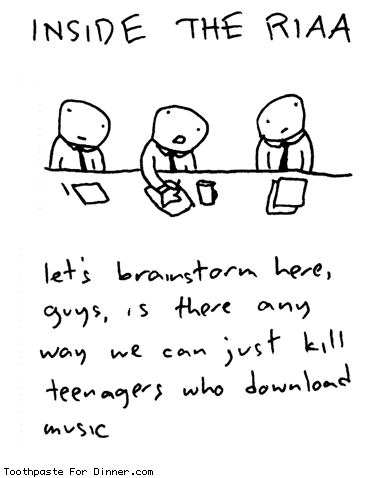
Since most Mp3’s come from CD’s of artists who have copyrighted their material, sharing or distributing this music is illegal in most cases. Peer to Peer (P2P) networks have allowed easy sharing of files between individuals which is a wonderful tool but when copyrighted material is shared, that’s where the trouble starts. That’s how Napster got in trouble. Now, Napster provides legal downloads because they charge money for copyrighted material and they send that money to the RIAA. The Recording Industry Association of America is the trade group that represents the U.S. recording industry.

Below is an example of legal music download sites and sites that MAY allow users to share copyrighted material. **Just because individuals may share copyrighted material, it doesn’t mean that the site owners condone that behavior. So these sites shouldn’t be thought of as “illegal”. Individuals should use their own discretion when choosing to use these sites.

Legitimate (can’t break the law here)

Possiblity of copyright problems (easy to find copyrighted material for free)

iTunes (Apple)

Kazaa (just settled a lawsuit)

Rhapsody (powered by REAL)

Limewire

Napster

Bearshare

Emusic

Morpheus

Yahoo Musicmatch